Blog

Visitor Management Kiosks: Setup, Features & How to Pick the Right One

Content Marketing Specialist
­­­­­–

Last updated on Aug 04, 2026

The short version

  • A visitor registration kiosk lets people check themselves in on a screen (usually an iPad at reception) and notifies the host as soon as they walk in.
  • You don't necessarily need hardware. Just print a QR code, tape it by the door, and have visitors check in on their own phones, with no tablet or stand.
  • Two decisions will determine your setup: which doors need a real kiosk and what each check-in has to collect (ID? an agreement to sign? a photo?).
  • Software costs $50 to $500 per location per month, and hardware's optional. Once you have a few sites, the pricing model will start to make more of a dent in your budget.
  • Each door has its requirements. A busy lobby and a locked-down data center aren't the same problem.

‍

Last time I signed into an office on paper, I could read the three people above me on the list. Their names, where they worked, who they were visiting, one phone number… Didn’t really mean to, but it just sat there right at eye level for whoever was holding the clipboard 🤷‍♀️.

‍

You might not think of a sign-in sheet as a data leak, even though it quietly is one, which pushes a lot of teams toward a visitor management kiosk.

‍

The idea is simple. The guest signs themselves in, and the host gets pinged before they've taken their coat off. The only tricky bit is working out what to buy because you probably need less than you think.

‍

So here's the whole thing laid out:

‍

  • what a visitor registration kiosk is, and how it works from start to finish
  • the hardware you need and the parts you can drop
  • the no-hardware setup
  • what to look for in the software, what it costs, and how to pick the right one for your building

What a visitor management kiosk is

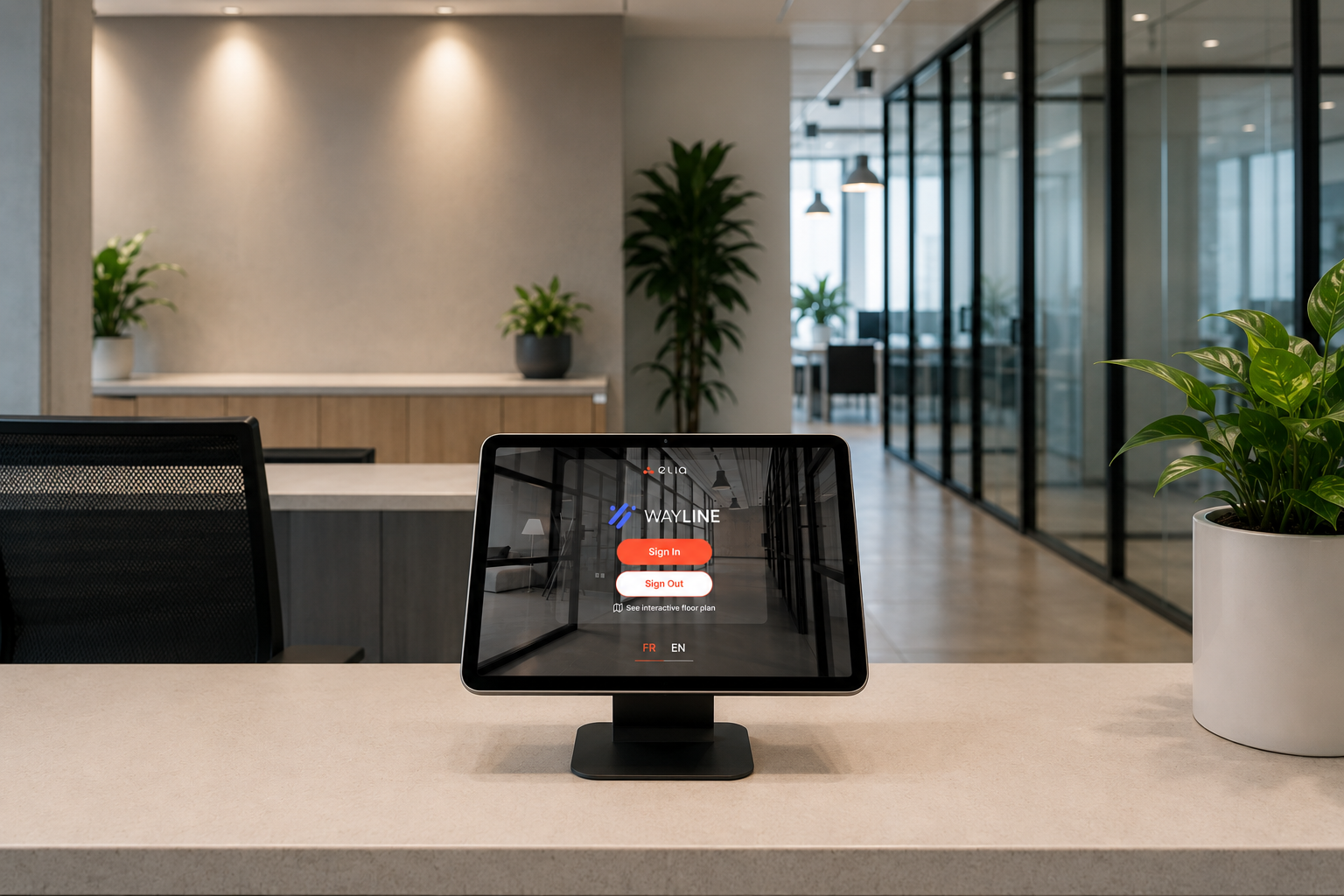
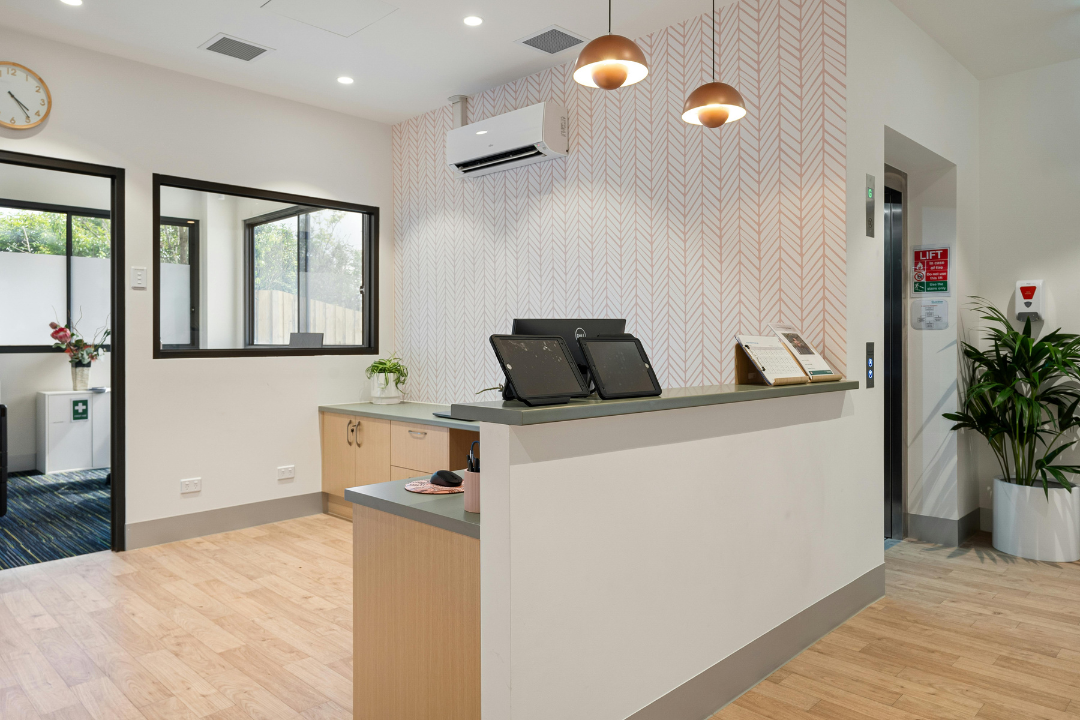
A visitor management kiosk is what a guest uses to sign in when they arrive. Most of the time it's an iPad at the front desk, with software running behind it. The guest taps in a few details, and the system does the rest.

‍

It helps to split that into two parts, as you end up buying them separately:

‍

  • There's the tablet or touchscreen device the visitor interacts with.

You'll see these called visitor kiosks, a visitor check in kiosk, or a reception kiosk, but it's all the same setup: a screen out front and an automated system doing the work underneath.

‍

Keep those two apart in your head, because it changes how you buy. The software sets what your check-in can do, while the hardware sets how people touch it. So you can change one without touching the other, which is handy when you're comparing options.

How a visitor check-in works, step by step

Pretty much every check-in system works in the same way, whether your visitor is a job candidate or a courier with a package. Here's the basic shape of it, but you can find the whole workflow from pre-arrival through check-out in our visitor management process guide here:

Step 1: The invite goes out (pre-registration)

The host knows the visitor is coming, so they pre-register them. The guest gets an email with a QR code, and sometimes a document to read ahead of time. If the visitor is pre-registered, they can skip most of the typing when they arrive, which cuts the check-in time down from two minutes to about 10 seconds.

Step 2: The visitor arrives and signs in

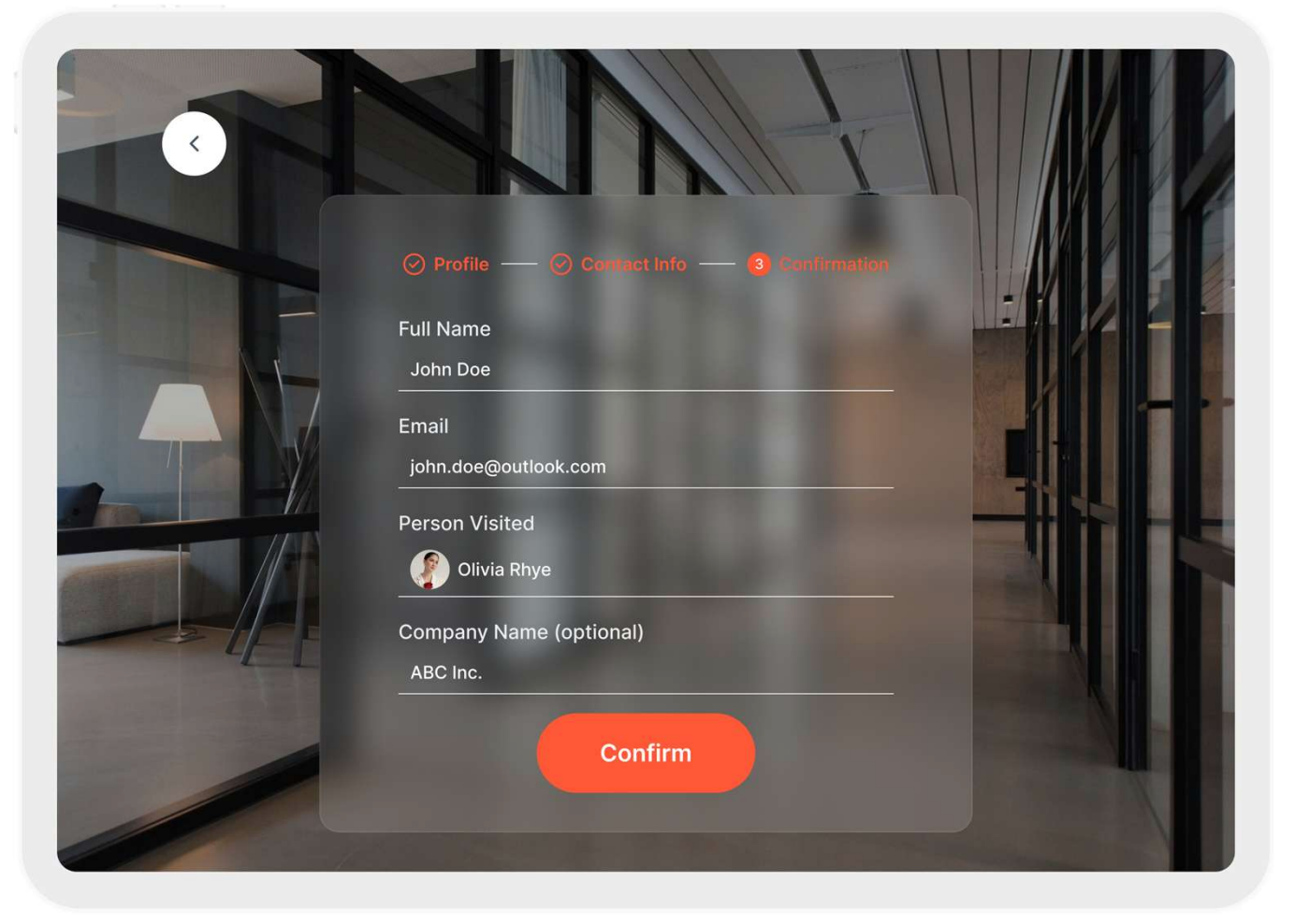
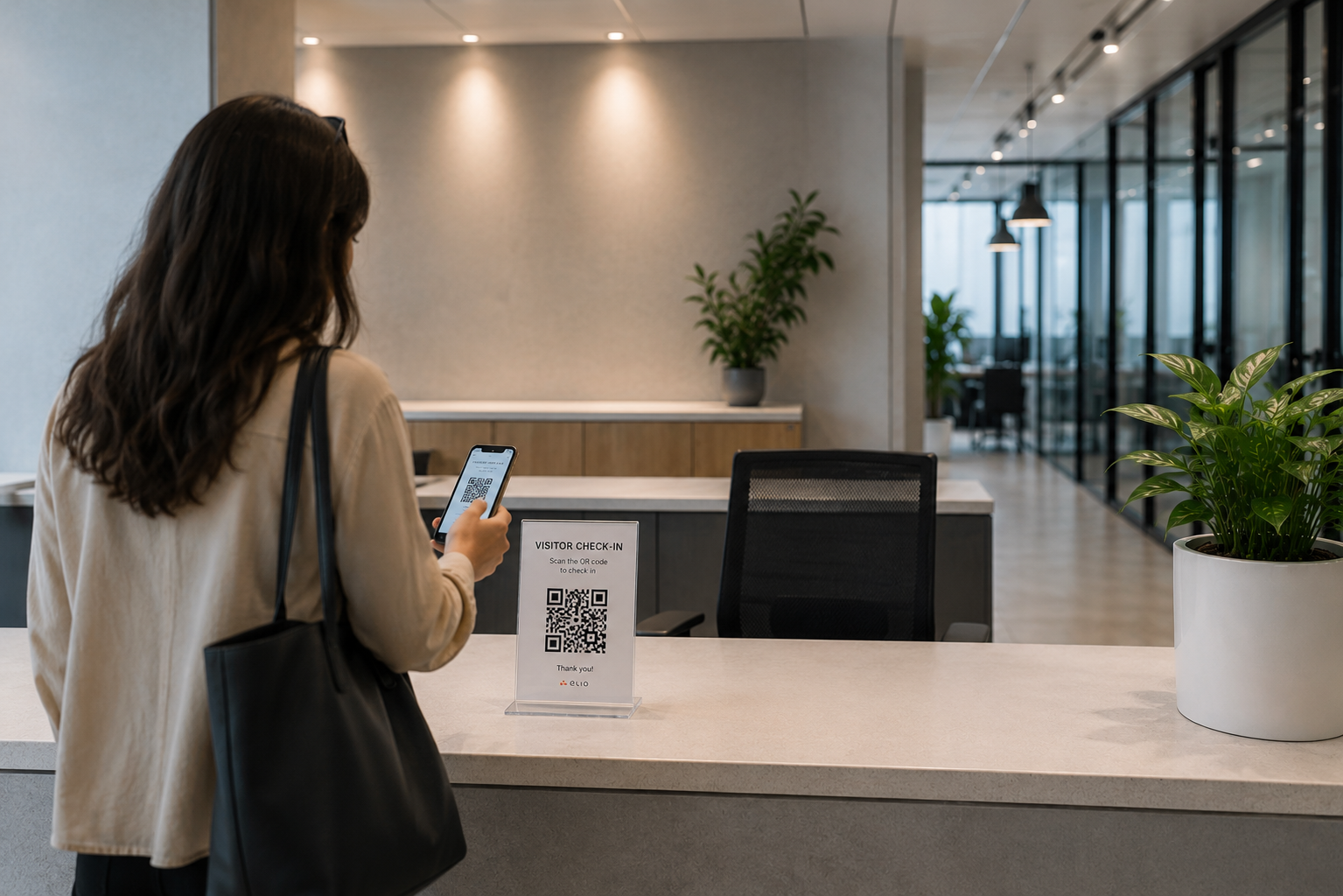
When the visitor gets to the site, they scan that QR code or type in their details on the screen: name, company, who they're there to see. Some vendors call this self-registration, and others call it self-service check-in.

visitor sign-in
Source: elia

Either way, the good self-service kiosks keep the sign-in process fast so nobody's stuck poking around a confusing screen while a host waits and visitors try to figure out what to do.

Step 3: ID check and documents

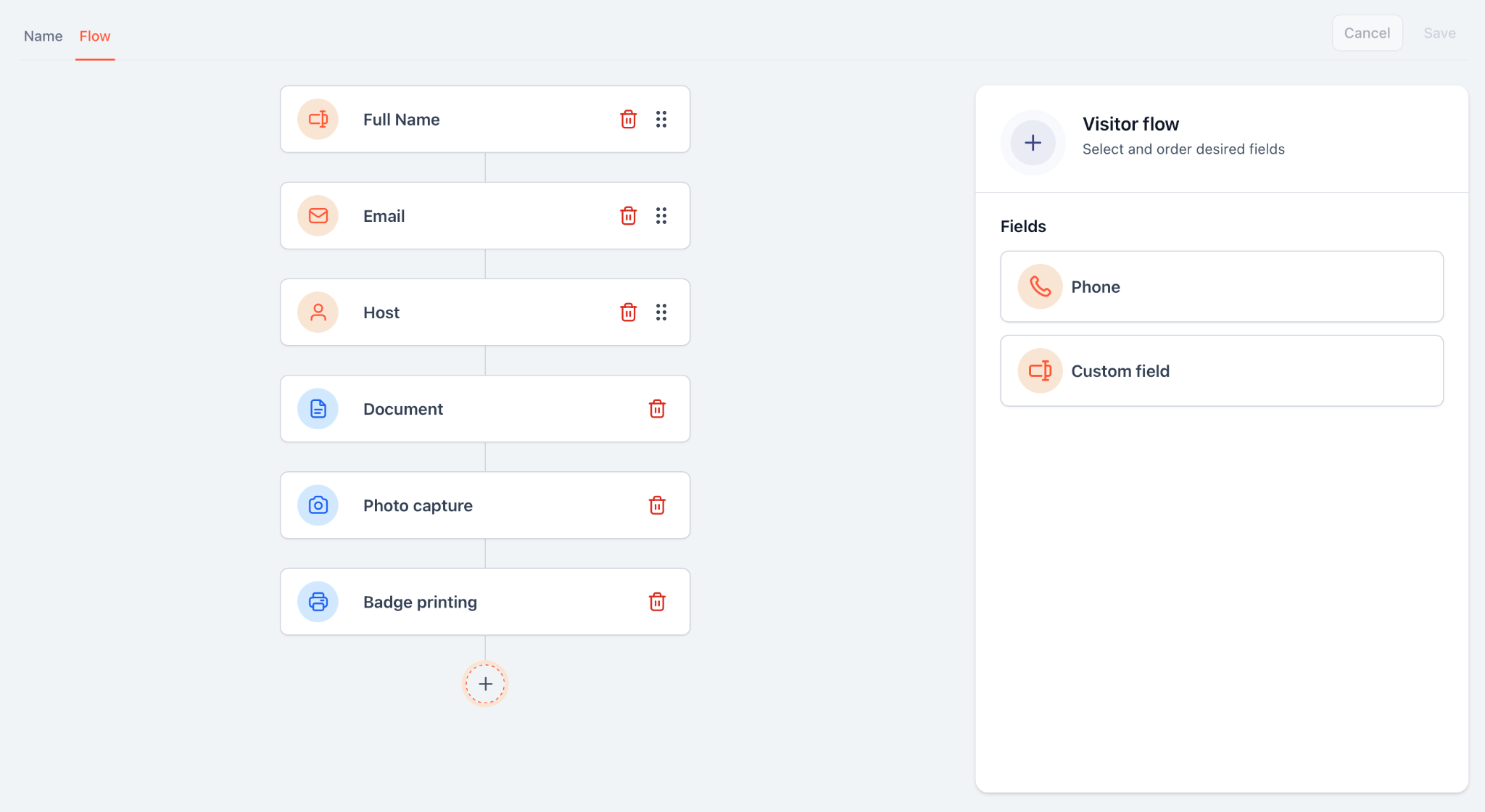
What the screen asks can change depending on who's checking in, since most systems let you set a different visitor flow for each guest type.

custom visitor flows
Source: elia

It might ask for a signature on an NDA or a safety waiver, take a photo, or run some identity verification. Having visitor photos helps security match a face to a name if it ever comes to that. Plenty of offices skip this step completely, and that's fine. You decide how much of a hassle a door needs to be.

Step 4: Badge printing

If you hand out badges, one prints right here. It gives staff a quick way to spot who's a guest, and adds maybe two seconds to the check-in. If you'd rather not print visitor badges, you can leave this step out, and a lot of offices do.

Step 5: The host gets the ping

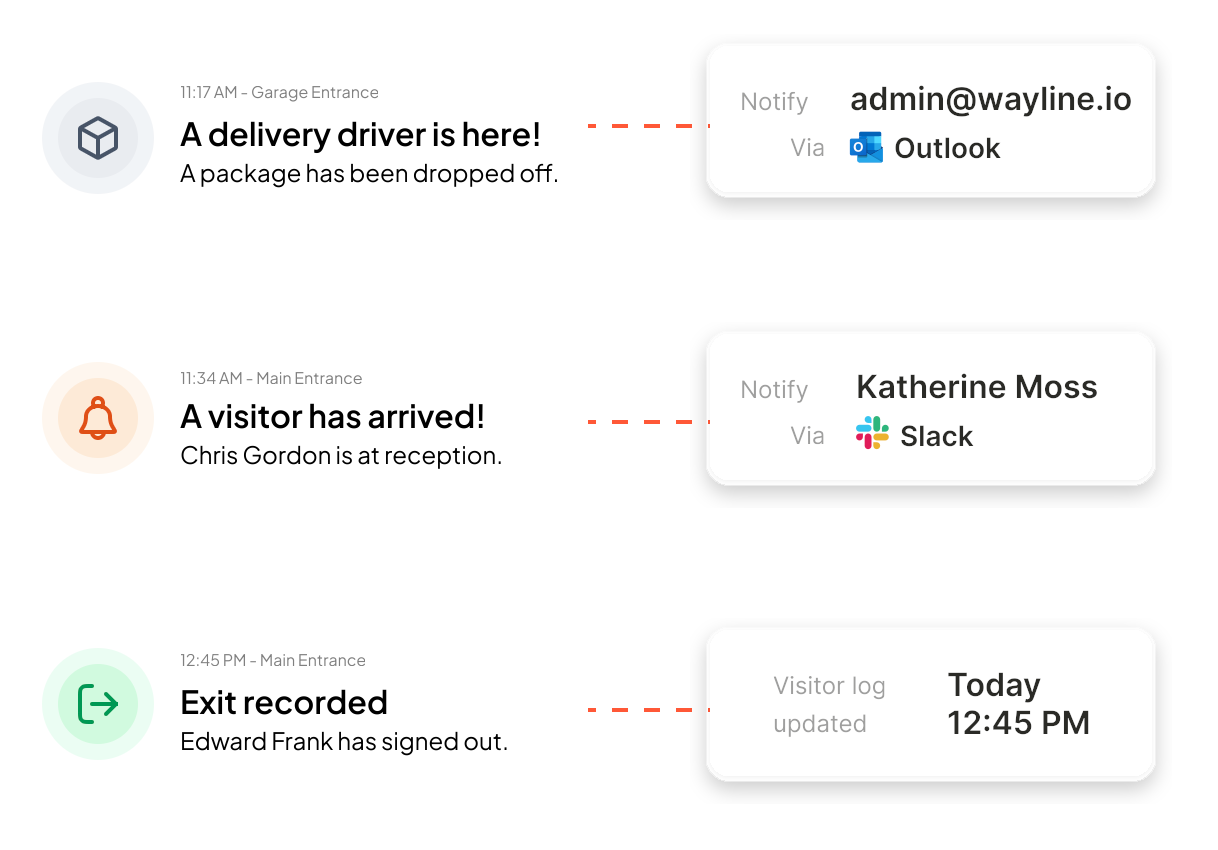
When there's a successful check-in, the host gets a message, either by email, Slack, Microsoft Teams, or whichever platform they prefer. It means reception doesn't have to go looking for the guest, the guest isn't just standing around waiting, and the visit gets logged so you can go back and check on it later. Which you'll be glad about the day someone asks who was in the building last Monday.

host notifications
Source: elia

Visitor management hardware: what you need

People tend to think of visitor management hardware and picture some big, complicated machine bolted to the floor. But the reality is it's not that heavy. Most visitor management system hardware is a tablet and a couple of optional extras you might not even use.

‍

Here's the essential hardware, and where you can cut:

‍

  • A tablet. Most of these apps are built iPad-first, older iPads still work fine, and iOS connects to a Wi-Fi badge printer without much fuss since AirPrint does the work for you. Android works with many systems too, so if that's what your company uses, check your system and printer combo before you commit. And if you already have tablets, you can just use those, so it often costs you nothing.
  • A stand or kiosk enclosure. This keeps the tablet at a decent height and stops it getting knocked over. You can get a countertop stand for a desk, a floor stand for an open lobby, or just use something you already have.
  • A badge printer. If you need to print out badges, a small thermal printer (Brother ones are literally everywhere) will do the trick. If not, you can skip it.
  • A camera or QR code scanner. The tablet's own camera grabs a photo or reads a QR code off a guest's phone. Some systems can scan ID documents, though many don't, so ask about it if that's something you need.
  • Wi-Fi. The kiosk needs to sync with the cloud, so it needs a stable Wi-Fi connection.

Ask yourself here, what does your particular door need? A locked-down plant and a ten-person studio are going to require a pretty different kit, and buying the plant setup for the studio is wasting money.

You might not need a hardware kiosk at all

A lot of the time you can do check-in on a visitor's own phone, without any hardware in the lobby at all.

‍

It works through a QR code. Create it once, print it out, stick it by the door, and visitors can scan it to start the check-in process on their phone. It's all the same form, same fields, same document to sign. For example, elia offers this as a standard feature, which you can turn off and back on whenever; the same code keeps working, so there's nothing to reprint.

It flips the math on a lot of everyday situations:

‍

  • A side door that only gets the occasional visitor doesn't need its own iPad.
  • A small office can do self-service check-in from phones, with no need for a kiosk.
  • A company rolling this out across a dozen buildings can start with printed codes and only add tablets where the traffic justifies them.

Just think through the badge. A phone can't print one on its own, so if you want guests wearing a printed badge, there has to be a printer somewhere in the lobby. Plenty of systems can help you with that anyway: the guest checks in on their phone and the badge prints automatically at a lobby station, or they get a digital pass on their phone instead.

What to look for in the visitor management kiosk software

Alright, the visitor management software is actually different from one vendor to the next, so that's where I'd put your attention. Treat this as your list and stay honest about which features you'll use versus which just look good in a demo and then go unused:

‍

What to look for in a visitor kiosk
Pre-registrationHosts invite guests ahead of time, and the guest arrives with a QR code and moves straight through.
Host notificationsThe host is alerted when the guest arrives through whichever channels your team already uses.
Custom flows by visitor typeA contractor and a delivery driver shouldn't get the same questions. Good systems let you build out separate flows and collect visitor information specific to each.
Document signingGuests read and sign an NDA or waiver on-screen; their signature and timestamp get saved to the visit record.
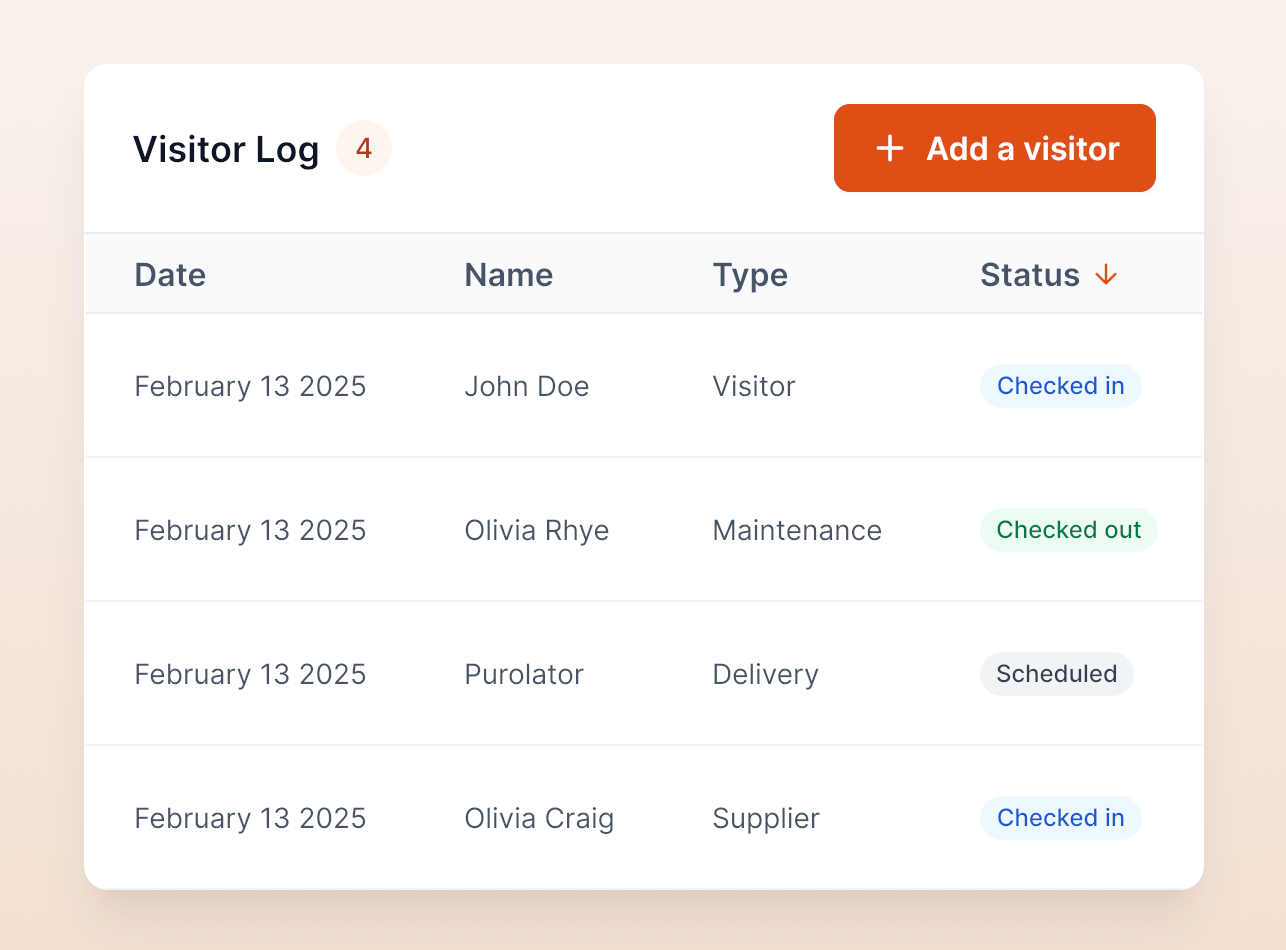
Visitor logs and exportingEvery single visit gets recorded: filter by date or host and export to CSV as needed. It's super handy for spotting visitor trends and meeting audit requirements where you need to keep records.
Multi-language and multi-siteOne dashboard to rule them all! Across every location, the guest experience stays the same, and you get to keep an eye on all sites from one place.
ID scanning, watchlists, access controlIf you're running a high-security site like a plant or lab, you might need to scan a license for ID verification, screen it against a watchlist, or tie the kiosk into your existing access control systems and door hardware. Some vendors do this, so if it's a dealbreaker, make sure the software can do it.
Returning-visitor recognitionSome tools remember frequent visitors so their repeat visits go faster, though this isn't standard, so check for it.
Remote managementCloud systems mean you can get to records and settings from anywhere, so a manager can troubleshoot a kiosk or pull a report without having to actually be in the lobby.
Data securityYou're collecting personal info, so look for encryption and secure storage and ask where the data ends up living.

‍

One of these features has an added benefit. Your visitor log doubles as a roster you grab in case of an emergency, so systems that tie it to emergency alerts and first-responder tracking are worth more to you than they look on the surface. And a few months of visitor data will tell you about your foot traffic and exactly when you’re busy, which in turn tells you how to allocate resources and staff more effectively.

visitor log
Source: elia

Where to put it and which visitor management setup fits which door

It really depends on the door. Once you match the setup to the entrance, most of the work is done:

‍

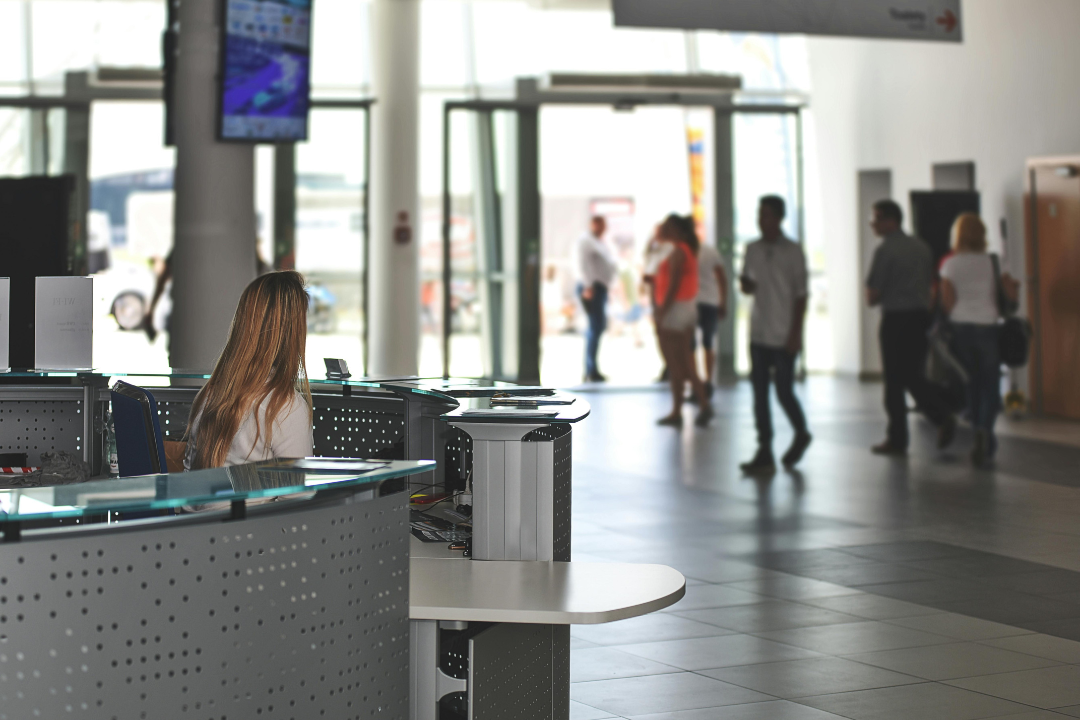
  • A staffed lobby. Tablet on the reception desk, easy. Your receptionist greets people and helps anyone stuck, while self-service handles the routine sign-ins so the desk doesn’t back up. Works great for busy corporate offices.
  • An unstaffed entrance. For a side door, or a small satellite office with no one at reception, self-service is perfect. Stick a tablet on a secure stand, or even just a printed QR code by the door, and you're covered. Guests still get a proper welcome, it just comes from the screen instead of a person.
  • Multiple sites. Add more sites and they start drifting apart, each one doing check-in its own way. One dairy co-op was dealing with this across 35 sites: three companies sharing a single lobby and one receptionist, desk booking in one tool, visitors in another, and a separate bill for every building. They put it all on one platform, and now it's one dashboard, one invoice for all 35, and the same check-in everywhere.
  • A high-security or regulated site. Plants, labs, and defense contractors have rules about who gets in and need to be able to prove it later, so they want an NDA before entry and a full record of every visit. One food producer we talked to had to verify and log every visitor for its food-defense audits, which is an FSMA requirement, and a paper log was never going to pass. If you need proper ID checks, make sure the system you choose can do them, because many can't.

A kiosk won't fully replace a receptionist, though. It does the sign-in, but it can't buzz open a keycard door or answer the phone. So if you're hoping to swap a person for a screen, it's good to know that up front.

What a visitor registration kiosk costs

There are two costs to think about:

‍

  • Software is somewhere around $50 to $500 per location a month, depending on features and size.
  • Hardware is a separate, mostly one-off cost. A tablet runs about $200 to $800 depending on which iPad you get, and if you want badges, a printer is around $200 to $300.

The secret to keeping your bill in check as you grow is the pricing model. Per seat pricing adds up fast if you have a lot of locations or doors, but per place or per entry pricing stays a lot more predictable.

‍

Bundling your tools together helps out in the same way. That same dairy co-op we mentioned earlier ran 46 visitor licenses across 35 sites, so stopping their separate booking and visitor systems, and then paying for every building on one platform, left them with just one annual invoice instead of a stack of monthly ones.

A few setup habits that help

Getting a kiosk running well is mostly small, boring stuff:

‍

  1. Put it where visitors walk in and slap a sign on it so they know what to do, or that kiosk might as well be gathering dust in a corner.
  2. Make it look like you by branding the welcome screen with your logo and colours.
  3. Turn on pre-reg for guests you expect, since a pre-registered visitor with a QR code checks in way faster than one typing out each field.
  4. Trim the host list down to just the people who need to see it so nobody has to scroll through a big list.
  5. Lock the tablet to the kiosk app, so if a bored visitor starts poking around, they can't get to your email. That's 2 taps on an iPad to get Guided Access on.
  6. Take your front desk team through it, and teach them how to rescue a guest who gets stuck.

And keep doing all the boring maintenance: update the app, top up the badge stock, keep an eye on the Wi-Fi.

The short version, and where to start

A visitor registration kiosk is really a few choices bundled together: which doors need a tablet, which run on a printed QR code, whether you print badges, and how much screening a door calls for. If you get these choices right, you only spend money where it makes a difference.

‍

So start with the doors. Look at where visitors turn up and what each visit has to capture. That alone tells you where a full kiosk earns its spot and where a QR code on the wall pulls the same weight for free.

‍

Want to see how the pieces line up for your building? Take a look at elia's visitor management system and hold it against your own entrances. Even if you don't end up using us, you'll likely walk away with a clearer picture of what each door needs.

‍

Welcome visitors better

Make every guest feel expected before they even reach reception.

elia visitor management
is a Content Marketing Specialist at elia. With 10+ years in content marketing, she writes about workplace trends and the tools that help teams work smarter. Part strategist, part storyteller, Tamara brings equal amounts of data, creativity, and a little Moon Prism Power to every piece she creates. 🌙✨
Contents
    Subscribe to our newsletter
    Subscribe to the elia newsletter for exclusive product updates and industry best practices. You can unsubscribe at any time.
    Thank you! You're subscribed.
    Oops! Something went wrong while submitting the form.

    Visitor management kiosk FAQ

    Answers to Your Common Queries

    What are the key benefits of a visitor management kiosk?
    What are the main use cases of a visitor management kiosk?
    How do I choose a visitor management kiosk?
    Do visitor check-in kiosks work without Wi-Fi?
    Can visitors check in from their phone instead of a tablet?